
Why Your Laptop Battery Drains So Fast — and How to Fix It
Let’s explore the most common causes of laptop battery drain — and some easy, effective ways to extend your battery life.
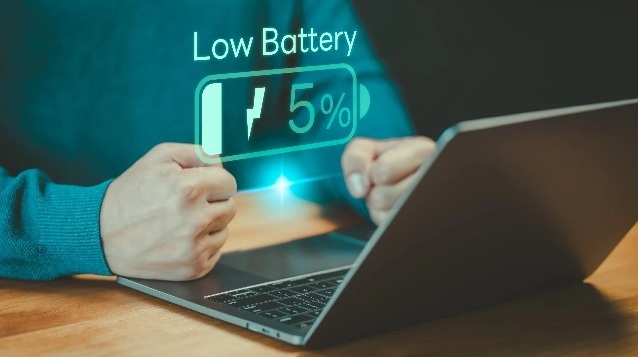
Common Causes of Laptop Battery Drain
1. Too Many Background Apps
Applications running quietly in the background (like cloud sync tools, chat apps, or antivirus scans) can consume power even when you’re not actively using them.
Fix:
-
Check your Task Manager (Windows) or Activity Monitor (Mac) for background apps.
-
Close unnecessary programs and disable auto-start for those you rarely use.
2. High Screen Brightness
Your laptop display is one of the biggest power consumers. Keeping it at 100% brightness can cut battery life significantly.
Fix:
-
Lower your screen brightness to a comfortable level.
-
Use adaptive brightness if your device supports it.
3. Wi-Fi and Bluetooth Always On
If your laptop is constantly searching for networks or Bluetooth devices, it’s draining your battery.
Fix:
-
Turn off Wi-Fi and Bluetooth when not in use.
-
Use Airplane Mode for offline tasks.
4. Old or Failing Battery
Laptop batteries naturally degrade over time. After a few years of regular use, even with good habits, they hold less charge.
Fix:
-
Check your battery health (Windows:
powercfg /batteryreport, macOS: System Settings > Battery > Battery Health). -
If it’s below 80% capacity, consider a replacement.
5. Heavy Processes or High CPU Usage
Running games, editing videos, or having too many browser tabs open increases CPU activity — which drains the battery faster.
Fix:
-
Close tabs and background tasks you don’t need.
-
Switch to “Battery Saver” or “Energy Efficient” mode.
6. Outdated Drivers or System Software
Outdated firmware or drivers can cause poor power management.
Fix:
-
Regularly update your operating system and drivers.
-
Enable automatic updates for critical patches.
⚙️ Bonus Tips to Extend Battery Life
-
Keep your laptop cool: Heat shortens battery lifespan — use a cooling pad or keep the vents clear.
-
Avoid full discharges: Try to keep your charge between 20%–80%.
-
Use dark mode: Saves energy, especially on OLED screens.
-
Hibernate instead of sleep: For long breaks, hibernate saves more power.
🧰 When to Get Professional Help
If you’ve tried all the above fixes and your laptop battery is still draining quickly, it might be time for a deeper inspection.
Dropoff your laptop at PC Expert Services for a professional diagnosis and reliable repair. Their certified technicians can test your battery health, identify hidden hardware issues, and recommend the best long-term solution.