PC Expert Services, Computer and laptop repair in Irvine, Orange County, CA
What Are The Best Laptop Brands?

What Are The Best Laptop Brands?

What Are The BEST Laptop Brands in 2020? – PC Expert Services

What are the BEST Laptop brands in 2020?

Finding the RIGHT laptop isn’t easy anymore in 2020 since there are so many laptop brands in the market.

There are only few laptop and computer brands in the market that are reliable and perform. Everyone has their own laptop or computer favorite, but some of these laptop or computer favorites are ain’t any front runners any more.

Not all laptop or computer brands provide the same technical support, value for mony or durability, so you need to make sure you understand every aspect while buying a new laptop or computer.

Here are 2  of laptop and computer brands according to their features, support, popularity, price and overall quality of their machine.

Call or Visit Us

(949) 478-1502

Monday – Friday 9 AM – 6:30 PM
Saturday 9 AM – 1 PM

7545 Irvine Center Drive, Ste. 200
Irvine, CA 92618

1. APPLE

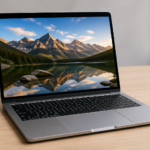
Apple is one of the luxury brands when it comes to laptops, computers, tablets, smartphones and music players.
Unlike other brands, Apple have their own Mac OS that comes pre-installed on all their machines including iMac, MacBook Air, MacBook Pro and the latest MacBook.

The reason behind Apple being number one is surely their efforts, innovations and quality. Also if we consider reliability and durability, Apple’s MacBooks have no competition and most of their products last for a very long time.

We have listed as Apple as the best laptop brand in 2020 becuase they offer a 14 days refund policy on their products and their Apple OS which is totaly error free and user friendly compared to Windows operation system.

2. DELL

DELL laptops are most budget-friendly Windows laptops that you can buy. Their technical support and after sales support is populare around the world.

DELL most popular three series for laptops and computers are Inspiron, XPS and Alienware. Inspiron is a perfect choice for budget users where XPS can be used for high-end usage and of course Alienware for gamers. Also according to recent lists, Dell is one of the best-selling laptop brands in 2020. They have laptop for just about everyone. 

DELL’s notebooks , laptops and computers have all the latest features covered including touchscreens, backlit keyboards, powerful processors and long lasting batteries.

Why is my Laptop not powering on?

Why is my Laptop not powering on?

Why is my Laptop not powering on?

If your laptop is not powering on, or does not turn on, there are several issues that might causing your laptop not to power on.

1. Power Adapter

If your laptop runs out of battery and it is not plugged in, it may not power on until you plug in the Power Adapter. 

Ensure that the laptop Power Adapter is plugged in on both ends correctly and securely. If your laptop works only with Power Adapter plugged in, then your laptop battery is dead or defective.

2. Battery

The laptop can also be in a power state that prevents it from booting. Disconnecting the power cable and then removing the battery from the laptop. Leave both disconnected from the laptop for at least a minute. Then, put the battery back into the laptop, connect the power cable, and try turning on the laptop.

Removing the battery on some laptop models could be tricky, you might have to remove the bottom cover to access the battery connector. Some laptop battery connectors can break off easily during disconnection from the motherboard.  

3. Residual Charge

Sometimes, a residual electrical charge can keep your laptop from turning on. You can think of it as an “electricity clog.” By performing the following steps, you effectively drain your laptop of any electricity and start over, which can result in it powering up.

1. Disconnect the AC adapter and remove the battery.
2. Hold down the power button for thirty seconds to drain any residual power in the laptop.
3. Without replacing the battery, plug the AC adapter back into the laptop.
4. Press the power button to turn on your laptop.
5. If the laptop powers on, shut down the laptop normally.
6. When the laptop is powered down, put the battery back in the laptop.
7. Power on the computer, and verify that it boots correctly.

4. Bad Hardware

If, after going through the suggested troubleshooting steps above your laptop still does not turn on, the problem is likely a hardware failure. The most likely hardware component to be at fault is the motherboard or processor. Unfortunately, more in-depth troubleshooting is required to determine the cause for the laptop not working. If faulty hardware is the root cause, repair or replacement of that hardware component may be necessary to fix the problem.

We recommend to contact PC Expert Services to have your laptop diagnosed and have them to replace the faulty hardware professionally.

Laptop Hinge Repair for any Laptop Brand and Laptop Model

Laptop Hinge Repair for any Laptop Brand and Laptop Model

Laptop Hinge Repair for any Laptop Brand and Laptop Model

PC Expert Services specializes on Laptop Hinge Repair. We provide FREE repair quote on your Laptop Hinge Repair .

We can fix your laptop hinge depending on what is broken. A lot of the time it’s actually the top cover or the bottom base that’s broken and needs replacing! However, you might need your hinges replaced too, depending on your laptop and the severity of the damage.

Contact PC Expert Services or just fill out the Online Drop Off form to get your laptop hinge repair started today! 

Laptop Screen Repair for any Laptop Brand

Laptop Screen Repair for any Laptop Brand

Laptop LCD Screen Repair for any Laptop Brand and Laptop Model

No matter if you have cracked laptop screen, or if the laptop LCD screen just went black or your laptop monitor screen just flickers we can fix, repair or replace your laptop screen in Irvine, Orange County.

PC Expert Services has replaced 1000s of laptop screens and has the know-how and the experience on how to replace laptop LCD screens professionally and fast with 100% satisfaction guaranteed.

HP Laptop Screen Repair

SAMSUNG Laptop Screen Repair

DELL Laptop Screen Repair

Apple Laptop Screen Repair

ASUS Laptop Screen Repair

ACER Laptop Screen Repair

Toshiba Laptop Screen Repair

SONY Laptop Screen Repair

Lenovo Laptop Screen Repair

PCE

Best Laptop LCD Screen Repair in Irvine

PC Expert Services Laptop LCD Screen Repair process is clear. We focus on your laptop screen replacement and will not waste time to get the job done fast. We are here to help you to get your repaired laptop screen back to you as soon as possible.

FREE ESTIMATES | 3 Years Limited WARRANTY | 100% Satisfaction Guaranteed

How To Get Your Laptop Screen Repaired Fast?

03Drop Off Lapotp

Drop Off your laptop at our Irvine drop off location at 7545 Irvine Center Drive, Suite 200, inside the REGUS Building for a FREE Laptop Screen Repair Estimate.

03Approve Repair

Approve your Laptop Screen repair estimate for your device conveniently by email.

03Complete Payment

Complete  payment online for your Laptop Screen Repair.

03Pickup Device

Youhu! Your Laptop is ready for pick up at our drop off location in Irvine. 

What should I do when a computer freezes or locks up?

What should I do when a computer freezes or locks up?

What should I do when a computer freezes or locks up?

This blog post contains recommendations on what to do if the computer freezes or deadlocks. If your computer has stopped responding, follow the steps below to attempt to get the computer to unfreeze.

Give the computer some time

Wait. Give the computer a few minutes to process. Sometimes a computer may appear to be frozen, but it’s only slow or busy processing a complex task.

Is the computer deadlocked?

See if the computer responds by pressing the Caps Lock key on the keyboard and watching the Caps Lock LED (light) to see if it turns on and off. If the computer can turn on and off Caps Lock, continue to the next step. If nothing happens, the computer is deadlocked, and you must reboot the computer.

End Task the not responding program

See if the computer responds by pressing the Caps Lock key on the keyboard and watching the Caps Lock LED (light) to see if it turns on and off. If the computer can turn on and off Caps Lock, continue to the next step. If nothing happens, the computer is deadlocked, and you must reboot the computer.

If the Task Manager opens, but the mouse is still not working, it may be a problem with mouse’s hardware.

Reboot a frozen computer

If none of the above steps helped, you must reboot the computer. To reboot a frozen computer, press and hold down the power button until the computer turns off. Once the computer is off, wait a few seconds, then turn the computer back on and let it start as normal.

What happens to any work that has not been saved?

Any work that has not been saved is lost when a computer has to be reboot because it is frozen. In some situations, some programs may auto save your work every few minutes. If the program you are using performs this action, you can recover the work up to the last auto saved state.

Resolve hardware or device driver issue

If you tried all steps above and the computer still freezes, there may be defective hardware or a device driver that is not working correctly. A defective hard drive, stick of RAM, video card, or another piece of hardware can cause a computer to freeze. A device driver can also cause a computer to freeze if it is out of date, conflicting with another driver, or not working properly.

If you determine that a defective piece of hardware is causing the freezes, you should replace the hardware right away to prevent further damage to the computer. If a device driver is at fault, download the latest driver from the manufacturer’s website and install it before the computer freezes. Or use another computer to download the driver and try installing the driver on your computer.

If you cannot install the latest driver before the computer freezes, another option is to start the computer in Safe Mode. Once in Safe Mode, you can access Device Manager and uninstall the hardware device corresponding to the device driver that is not working correctly. Then, restart the computer and load into Windows normally. Windows should detect the hardware that you uninstalled and try to reinstall the device driver. This process may be enough to fix the issue, and stop further freezes from occurring. You can also try installing the latest driver at this point, to make sure your computer is up-to-date for that device driver.

You can also try accessing the computer BIOS and disable any hardware that is not working properly, to see if that stops the freezes from occurring. However, you should still replace that hardware, as you may not be able to use your computer fully if the hardware remains disabled.

Take PC to repair shop

If the options above do not work, we recommend taking your computer to PC Expert Services in Irvine and allow us professionally to diagnose and fix the problem.