PC Expert Services, Computer and laptop repair in Irvine, Orange County, CA
When Can Sleep Mode Cause Problems on Laptops?

When Can Sleep Mode Cause Problems on Laptops?

When Can Sleep Mode Cause Problems on Laptops?

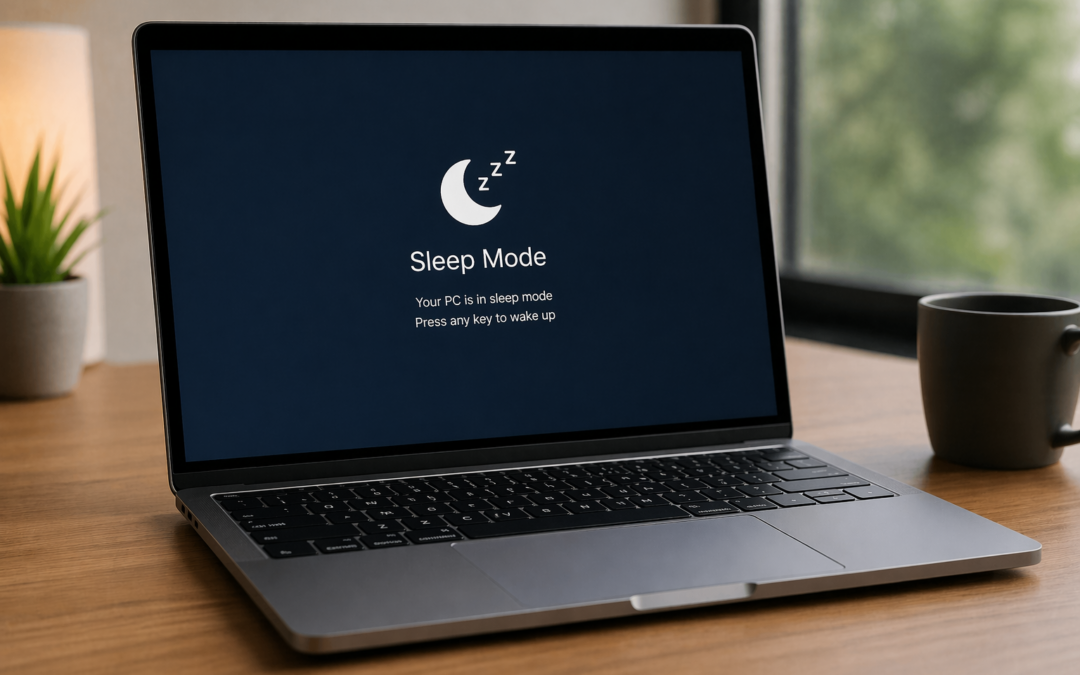
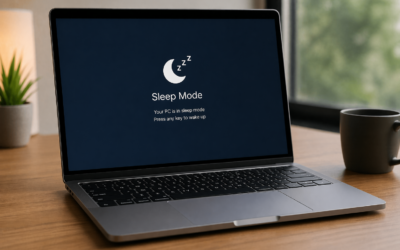
Sleep mode is designed for convenience—close the lid and resume your work instantly. But while it’s useful for day-to-day use, relying on sleep mode too often can sometimes lead to performance issues, battery drain, and even data risks.

In this article, we’ll break down when sleep mode can cause problems on laptops, how to recognize the warning signs, and what you can do to prevent them.


💻 What Is Sleep Mode?

Sleep mode puts your laptop into a low-power state where:

  • Your current session is stored in RAM
  • The system uses minimal power
  • You can quickly resume work

It’s ideal for short breaks—but not always for long-term use.


⚠️ Common Problems Caused by Sleep Mode

1. Battery Drain While Sleeping

Even in sleep mode, your laptop still uses power to maintain memory. Over time, this can:

  • Drain your battery faster than expected
  • Leave your laptop dead when you need it

👉 This is especially noticeable if the device is left in sleep mode overnight or in a bag.


2. Overheating in a Bag or Enclosed Space

Sometimes laptops don’t fully enter sleep mode due to background activity or system glitches.

This can cause:

  • Heat buildup inside backpacks or cases
  • Fan noise while “sleeping”
  • Potential hardware stress or damage

3. System Slowdowns Over Time

If you rarely shut down or restart your laptop:

  • Temporary files accumulate
  • Memory (RAM) doesn’t fully clear
  • Background processes stack up

👉 Result: Slower performance, lag, and freezing issues.


4. Software Glitches After Waking

Some laptops experience issues when waking from sleep:

  • Wi-Fi not reconnecting
  • External devices not detected
  • Apps freezing or crashing

This is often due to driver or operating system conflicts.


5. Failed Updates and System Errors

Operating systems (like Windows or macOS) require full restarts for updates.

If you rely only on sleep mode:

  • Updates may not install properly
  • Security patches can be delayed
  • System stability may suffer

6. Data Loss Risks

While rare, sleep mode can still pose risks:

  • Sudden battery drain can cause unsaved work loss
  • System crashes during sleep/wake cycles may corrupt files

🔍 When Should You Avoid Sleep Mode?

Sleep mode is not ideal when:

  • You won’t use your laptop for extended periods
  • Your battery is already low
  • You’re transporting your laptop in a bag
  • Your system has been running for several days without a restart

✅ Best Practices for Using Sleep Mode

To avoid issues:

  • Use sleep mode for short breaks (a few hours)
  • Shut down or restart your laptop at least once a week
  • Keep your system updated
  • Avoid placing a sleeping laptop in tight, unventilated spaces

🧠 Expert Tip from PC Expert Services

If your laptop:

  • Overheats while sleeping
  • Drains battery quickly
  • Has trouble waking up
  • Feels slow or unstable

…it may need a deeper system check.

PC Expert Services offers:

  • Full diagnostics and performance optimization
  • Battery and hardware repair
  • Software troubleshooting and updates

🔧 Final Thoughts

Sleep mode is convenient—but it’s not perfect. Knowing when to use it (and when to shut down instead) can help you avoid performance issues, extend battery life, and protect your data.

If your laptop isn’t behaving the way it should, addressing the issue early can prevent costly repairs later.
Should You Shut Down Your Laptop or Just Close the Lid?

Should You Shut Down Your Laptop or Just Close the Lid?

Should You Shut Down Your Laptop or Just Close the Lid?

If you’ve ever wondered whether it’s better to shut down your laptop or simply close the lid, you’re not alone. This is one of the most common questions among laptop users—and the answer depends on how you use your device.

In this guide, we’ll break down the differences between sleep mode vs shutdown, and help you decide which option is best for performance, battery life, and long-term reliability.


What Happens When You Close the Lid?

When you close your laptop lid, most systems enter sleep mode. In this state:

  • Your open apps and files are stored in RAM
  • The system uses very little power
  • You can resume your session instantly

Benefits of Sleep Mode

  • Fast and convenient access to your work
  • No need to reopen programs or files
  • Ideal for short breaks or daily use

Drawbacks of Sleep Mode

  • Still consumes a small amount of battery
  • Background processes may continue running
  • Can lead to slower performance over time if not restarted

What Happens When You Shut Down Your Laptop?

Shutting down your laptop completely powers off the system:

  • All processes are stopped
  • RAM is cleared
  • No battery is used while powered off

Benefits of Shutting Down

  • Improves system performance over time
  • Helps fix software glitches and freezing issues
  • Essential for system updates and maintenance
  • Conserves battery completely

Drawbacks of Shutting Down

  • Slower startup time
  • Requires reopening apps and files

Sleep vs Shutdown: Which Is Better?

Use Sleep Mode if:

  • You plan to use your laptop again soon
  • You need quick access without waiting
  • You’re working throughout the day

Shut Down Your Laptop if:

  • You won’t use it for an extended period
  • Your laptop is running slow or overheating
  • You’re troubleshooting or installing updates
  • You want to extend battery lifespan

How Often Should You Shut Down Your Laptop?

For optimal performance, it’s recommended to:

  • Use sleep mode for daily convenience
  • Perform a full shutdown or restart at least once per week

This helps clear memory, refresh system processes, and maintain overall performance.


Expert Tip: Improve Laptop Performance

If your laptop is experiencing:

  • Slow performance
  • Overheating
  • Battery drain issues
  • Problems waking from sleep

It may require professional diagnostics.

PC Expert Services provides:

  • Laptop diagnostics and performance optimization
  • Hardware repairs (battery, screen, motherboard)
  • Data recovery and system troubleshooting

Final Thoughts

Choosing between shutting down your laptop or closing the lid comes down to your usage habits. For everyday convenience, sleep mode works well—but regular shutdowns are essential for keeping your system running efficiently.

If your laptop isn’t performing as it should, PC Expert Services support can help extend its lifespan and restore performance.

No Bootable Device Found – What It Means and How to Fix It

No Bootable Device Found – What It Means and How to Fix It

“No Bootable Device Found” – What It Means and How to Fix It

Few things are more alarming than turning on your computer and seeing the message: “No Bootable Device Found.”

This error means your system can’t locate an operating system to start from, leaving you stuck at startup. But don’t panic—this is often fixable with a few steps.

What It Is:

Your computer is trying to start up (or “boot”) but can’t find a drive that has a valid operating system (like Windows, Linux, or macOS). As a result, it halts and shows an error on screen.

No boot able device found - how to fix it

Common Causes:

  • 🛠️ Disconnected or Failed Hard Drive: The internal drive may have come loose (especially if the computer was dropped or opened recently), or the drive may have failed entirely.

  • ⚙️ Incorrect BIOS/UEFI Settings: If the boot order is wrong, the system might try to boot from the wrong device—like an empty USB port or network device.

  • 🔄 Corrupted Bootloader or OS Files: Sometimes system files are damaged due to a failed update or improper shutdown, making the drive unreadable during boot.

  • 🔌 Loose or Damaged SATA/Power Cables: Physical connections from the motherboard to the hard drive might be loose or damaged.

How to Fix It:

1. Check the Boot Order in BIOS/UEFI

  • Restart the computer and enter BIOS/UEFI (usually by pressing F2, F10, DEL, or ESC during startup).

  • Navigate to the Boot menu.

  • Ensure your system drive (e.g., SSD or HDD) is listed first in the boot sequence.

2. Reconnect or Reseat Internal Drives

  • Power off your PC and unplug it.

  • Open the case (if it’s a desktop) or access the drive bay (for laptops).

  • Ensure all cables connected to your drive are secure. If it’s a laptop with a removable hard drive, make sure it’s seated properly.

3. Run a Diagnostic Tool

  • Many PCs offer built-in diagnostics you can access from the BIOS menu.

  • Run a hard drive test to check for hardware failure.

4. Use a Bootable USB or Recovery Media

  • If the system files are corrupted, boot from a recovery drive or installation media.

  • Use the repair options to fix startup issues:

    • On Windows: Choose “Startup Repair”.

    • On macOS: Boot into Recovery Mode and use Disk Utility.

5. Replace the Drive (If Necessary)

  • If the drive has failed (you’ll often hear clicking noises or get error codes), it may need replacing.

  • Restore your OS from a backup or reinstall it using recovery media.

At PC Expert Services, we are committed to providing accurate and reliable repair estimates. To ensure this, we offer a free diagnostic service to thoroughly assess your device and identify the exact issue.

Why is my Custom Gaming PC keeps Crashing?

Why is my Custom Gaming PC keeps Crashing?

why is my custom gaming pc crashing ?

A crashing custom gaming PC can stem from various issues, including overheating, faulty hardware, outdated drivers, or RAM problems. To troubleshoot, check temperatures, ensure components are properly seated, update drivers, and test RAM stability.

Here’s a more detailed breakdown of potential causes and troubleshooting steps:

1. Overheating:

Check Temperatures:
Monitor your CPU and GPU temperatures during gaming using monitoring software. If they reach high levels, it could be a sign of overheating.

Ensure Proper Cooling:
Make sure your CPU cooler is properly installed and that your case has adequate airflow.

Clean Dust:
Dust buildup can hinder cooling, so clean your PC’s fans, heatsinks, and case.

2. Hardware Issues:

RAM Problems:
Faulty or mismatched RAM can cause crashes. Test your RAM stability.

Power Supply Issues:
A faulty or insufficient power supply can lead to crashes, especially under heavy load.

Motherboard Issues: A faulty motherboard can cause random crashes or shutdowns.

Graphics Card Issues:
A faulty or overheating graphics card can lead to crashes during gaming.

3. Software Issues:

Outdated or Corrupted Drivers:
Ensure your drivers, especially for your graphics card, are up-to-date.

Driver Conflicts:
Conflicting drivers can cause instability.

Corrupted Operating System:
A corrupted Windows installation can lead to crashes.

Background Applications:
Some software can interfere with gaming performance, so close unnecessary programs.

4. Troubleshooting Steps:

Check Event Viewer:
Look for error messages in the Event Viewer (Windows + R, type perfmon, press Enter, expand Monitoring Tools, select Reliability Monitor) to identify potential causes of crashes.

Check for Error Codes:
If your PC beeps or displays error codes during startup, note them down and research their meaning.

Reseat Components:
Ensure all your components, including RAM, graphics card, and power supply connectors, are properly seated.

Try a Different Power Supply:
If you suspect the power supply, try a different one if you have access to one.

Clean Install Windows:
If you suspect a corrupted Windows installation, try a clean install.

Stress Test Components:
Use stress testing software to identify potential hardware issues.

5. Specific Issues:

Blue Screen of Death (BSOD):
If you’re getting BSODs, search for the error code online to find specific solutions.

Game-Specific Crashes:
If the crashes only occur in specific games, it could be a game-related issue.

How to Show the Ultimate Performance Plan in Microsoft Windows 10 and Windows 11

How to Show the Ultimate Performance Plan in Microsoft Windows 10 and Windows 11

If you don’t see the Ultimate Performance power plan, you can enable it using Windows Terminal/Command Prompt. Here’s how:

1. Press Windows + X and choose Terminal (Admin). This option may be labeled Windows Terminal (Admin) or Windows PowerShell (Admin) in older versions of Windows.

2. Type in (or paste) the following command and press Enter: powercfg -duplicatescheme e9a42b02-d5df-448d-aa00-03f14749eb61

How to enable the Ultimate Performance power plan in Microsoft Windows 10 and Windows 11
Now, you can navigate to the power plan page as described in the section above and enable the Ultimate Performance plan. If the page was already open, you may need to close it and open it again for the new plan to appear. However, even if you do everything right, this option no longer seems to work in Windows 11. Windows Terminal will show a success message, but the power plan won’t actually be added to your list.
Why Professional Laptop Repair matters?

Why Professional Laptop Repair matters?

Why Professional Laptop Repair matters?

Laptop computers were designed to allow busy transient society to have access to their computerized world at moment’s notice while traveling form place to place, meeting-to-meeting without sitting at a desk to use a computer.

laptop-repair-fan-replacement-pcexpertservices-irvine-newport-beach-orange-county
A Comprehensive Guide to Laptop Repair: Troubleshooting and Solutions

Laptop computers were designed to allow busy transient society to have access to their computerized world at moment’s notice while traveling form place to place, meeting-to-meeting without sitting at a desk to use a computer.

Laptop computers were designed to allow busy transient society to have access to their computerized world at moment’s notice while traveling form place to place, meeting-to-meeting without sitting at a desk to use a computer. Laptop manufacturers saw the need of laptops to increase the productivity in our daily life. Laptop computers became in demand in different fields of business and technological world.

MacBook-battery-Repair
Upgrading a laptop can help improve its performance, expand its storage capacity, or enhance its capabilities.

Laptop computers were designed to allow busy transient society to have access to their computerized world at moment’s notice while traveling form place to place, meeting-to-meeting without sitting at a desk to use a computer.

Laptop manufacturers saw the need of laptops to increase the productivity in our daily life. Laptop computers became in demand in different fields of business and technological world. 

Innovative computer manufacturers such as IBM, Lenovo, Compaq, Toshiba, Hewlett-Packard and Apple competently designed laptops with different features and functionalities for different needs of customers.

High-end laptops and notebooks now are presented in large computer shops and provide longer battery life, full size keyboard, touchpad, LCD screens with millions of true colors and microprocessors and built-in cameras and microphones. With ever evolving hardware also the software manufacturer advanced their operating systems to a new horizon that can manage your data and connection to world wide web as easy and fast as possible.

Repairing laptops is not as it used to be. The laptops logic boards are getting more advanced and difficult to diagnose. The laptop logic boards now have integrated microprocessors and smart graphics and embedded solid-state storage. The new and fast technology are making laptops more fragile to daily use and laptops can malfunction with many different symptoms.

Laptop repair that you should expect from a laptop repair company has evolved as well. The laptop repair needs to be fast, reliable and to distinguish correctly a hardware problem from a software issue.
PC Expert Services laptop repair skills and experience will exactly provide you with the expectations that you should have from a laptop repair service.

Lenovo Yoga 9i 14ITL5 82BG009RUS 2-in-1 Laptop
Microsoft Surface Lapto Studio

PC Expert Services is ready to get the job done with high quality computer repair, experienced and reliable laptop repair, detailed and professional customer service without any hidden fees and upfront pricing in Irvine, Orange County.

Recent Posts