PC Expert Services, Computer and laptop repair in Irvine, Orange County, CA
What are the Benefits of Cloud Computing?

What are the Benefits of Cloud Computing?

What are the Benefits of Cloud Computing?

apps for CMS Content Management System

Benefits of cloud computing

Cloud computing isn’t an all-or-nothing service approach. Companies can choose to use the cloud to store their data and execute logic as much, or as little, as necessary to fulfill their business requirements. Existing businesses might choose a gradual movement to save money on infrastructure and administration costs (referred to as “lift and shift”), while a new company might start in the cloud.

Let’s learn some of the top benefits of cloud computing.

It's cost-effective

Cloud computing provides a pay-as-you-go or consumption-based pricing model.

This consumption-based model brings with it many benefits, including:

  • No upfront infrastructure costs
  • No need to purchase and manage costly infrastructure that you may not use to its fullest
  • The ability to pay for additional resources only when they are needed
  • The ability to stop paying for resources that are no longer needed
This also allows for better cost prediction. Prices for individual resources and services are provided so you can predict how much you will spend in a given billing period based on your expected usage. You can also perform analysis based on future growth using historical usage data tracked by your cloud provider.

Call or Visit Us

(949) 478-1502

PC Expert Services
7545 Irvine Center Drive, Ste. 200
Irvine, CA 92618

It's scalable

You can increase or decrease the resources and services used based on the demand or workload at any given time. Cloud computing supports both vertical and horizontal scaling depending on your needs.

Vertical scaling, also known as “scaling up”, is the process of adding resources to increase the power of an existing server. Some examples of vertical scaling are: adding more CPUs, or adding more memory.

Horizontal scaling, also known as “scaling out”, is the process of adding more servers that function together as one unit. For example, you have more than one server processing incoming requests.

Scaling can be done manually or automatically based on specific triggers such as CPU utilization or the number of requests and resources that can be allocated or de-allocated in minutes.

It's elastic

As your workload changes due to a spike or drop in demand, a cloud computing system can compensate by automatically adding or removing resources.

For example, imagine your website is featured in a news article, leading to a spike in traffic overnight. Since the cloud is elastic, it automatically allocates more computing resources to handle the increased traffic. When the traffic begins to normalize, the cloud automatically de-allocates the additional resources to minimize cost.

Another example is if you are running an application used by employees, you can have the cloud automatically add resources for the peak operating hours during which most people access the application, and remove the resources at the usual end of the day.

It's current

When you use the cloud, you’re able to focus on what matters: building and deploying applications. Cloud usage eliminates the burdens of maintaining software patches, hardware setup, upgrades, and other IT management tasks. All of this is automatically done for you to ensure you’re using the latest and greatest tools to run your business.

Additionally, the computer hardware is maintained and upgraded by the cloud provider. For example, if a disk fails, the disk will be replaced by the cloud provider. If a new hardware update becomes available, you don’t have to go through the process of replacing your hardware. The cloud provider will ensure that the hardware updates are made available to you automatically.

It's reliable

When you’re running a business, you want to be confident your data is always going to be there. Cloud computing providers offer data backup, disaster recovery, and data replication services to make sure your data is always safe. In addition, redundancy is often built into cloud services architecture so if one component fails, a backup component takes its place. This is referred to as fault tolerance and it ensures that your customers aren’t impacted when a disaster occurs.

It's global

Cloud providers have fully redundant datacenters located in various regions all over the globe. This gives you a local presence close to your customers to give them the best response time possible no matter where in the world they are.

You can replicate your services into multiple regions for redundancy and locality, or select a specific region to ensure you meet data-residency and compliance laws for your customers.

It's secure

Think about how you secure your datacenter. You have physical security – who can access the building, who can operate the server racks, and so on. You also have digital security – who can connect to your systems and data over the network.

Cloud providers offer a broad set of policies, technologies, controls, and expert technical skills that can provide better security than most organizations can otherwise achieve. The result is strengthened security, which helps to protect data, apps, and infrastructure from potential threats.

When it comes to physical security – threats to cloud infrastructure, cloud providers invest heavily in walls, cameras, gates, security personnel, and so on, to protect physical assets. They also have strict procedures in place to ensure employees have access only to those resources that they’ve been authorized to manage.

Let us talk about digital security. You want only authorized users to be able to log into virtual machines or storage systems running in the cloud. Cloud providers offer tools that help you mitigate security threats, and you must use these tools to protect the resources you use.

Summary

Cloud computing makes running a business easier. It’s cost-effective, scalable, elastic, current, reliable, and secure. This means you’re able to spend more time on what matters and less time managing the underlying details.

Call PC Expert Services for a FREE Consultation Today!

Top Reasons to have your repair done by PC Expert Services in Irvine

  • We use grade A+ parts
  • Free Diagnostics
  • Quick turnaround time
  • Local Repair done by Certified Tech
  • 1 Year Limited Warranty on all repairs

What is Cloud Computing?

What is Cloud Computing?

What is Cloud Computing?

apps for CMS Content Management System

Compute power

The goal of cloud computing is to make running a business easier and more efficient, whether it’s a small start-up or a large enterprise. Every business is unique and has different needs. To meet those needs, cloud computing providers offer a wide range of services.

You need to have a basic understanding of some of the services it provides. Let’s briefly discuss the two most common services that all cloud providers offer – compute power and storage.

Cloud computing is renting resources, like storage space or CPU cycles, on another company’s computers. You only pay for what you use. The company providing these services is referred to as a cloud provider. Some example providers are Microsoft, Amazon, and Google.

The cloud provider is responsible for the physical hardware required to execute your work, and for keeping it up-to-date. The computing services offered tend to vary by cloud provider. However, typically they include:


  • Compute power – such as Linux servers or web applications used for computation and processing tasks
  • Storage – such as files and databases
  • Networking – such as secure connections between the cloud provider and your company
  • Analytics – such as visualizing telemetry and performance data

Call or Visit Us

(949) 478-1502

PC Expert Services
7545 Irvine Center Drive, Ste. 200
Irvine, CA 92618

msi-4k-gaming-graphic-card-pcexpertservices-irvine

Cloud computing services

The goal of cloud computing is to make running a business easier and more efficient, whether it’s a small start-up or a large enterprise. Every business is unique and has different needs. To meet those needs, cloud computing providers offer a wide range of services.

You need to have a basic understanding of some of the services it provides. Let’s briefly discuss the two most common services that all cloud providers offer – compute power and storage.

Compute power

When you send an email, book a reservation on the Internet, pay a bill online, or even take this Microsoft Learn module you’re interacting with cloud-based servers that are processing each request and returning a response. As a consumer, we’re all dependent on the computing services provided by the various cloud providers that make up the Internet.

When you build solutions using cloud computing, you can choose how you want work to be done based on your resources and needs. For example, if you want to have more control and responsibility over maintenance, you could create a virtual machine (VM). A VM is an emulation of a computer – just like your desktop or laptop you’re using now. Each VM includes an operating system and hardware that appears to the user like a physical computer running Windows or Linux. You can then install whatever software you need to do the tasks you want to run in the cloud.

The difference is that you don’t have to buy any of the hardware or install the OS. The cloud provider runs your virtual machine on a physical server in one of their datacenters – often sharing that server with other VMs (isolated and secure). With the cloud, you can have a VM ready to go in minutes at less cost than a physical computer.

VMs aren’t the only computing choice – there are two other popular options: containers and serverless computing.

What are containers?

Containers provide a consistent, isolated execution environment for applications. They’re similar to VMs except they don’t require a guest operating system. Instead, the application and all its dependencies is packaged into a “container” and then a standard runtime environment is used to execute the app. This allows the container to start up in just a few seconds, because there’s no OS to boot and initialize. You only need the app to launch.

The open-source project, Docker, is one of the leading platforms for managing containers. Docker containers provide an efficient, lightweight approach to application deployment because they allow different components of the application to be deployed independently into different containers. Multiple containers can be run on a single machine, and containers can be moved between machines. The portability of the container makes it easy for applications to be deployed in multiple environments, either on-premises or in the cloud, often with no changes to the application.

What is serverless computing?

Serverless computing lets you run application code without creating, configuring, or maintaining a server. The core idea is that your application is broken into separate functions that run when triggered by some action. This is ideal for automated tasks – for example, you can build a serverless process that automatically sends an email confirmation after a customer makes an online purchase.

The serverless model differs from VMs and containers in that you only pay for the processing time used by each function as it executes. VMs and containers are charged while they’re running – even if the applications on them are idle. This architecture doesn’t work for every app – but when the app logic can be separated to independent units, you can test them separately, update them separately, and launch them in microseconds, making this approach the fastest option for deployment.


Here’s a diagram comparing the three compute approaches we’ve covered.

Storage

Most devices and applications read and/or write data. Here are some examples:

  • Buying a movie ticket online
  • Looking up the price of an online item
  • Taking a picture
  • Sending an email
  • Leaving a voicemail

In all of these cases, data is either read (looking up a price) or written (taking a picture). The type of data and how it’s stored can be different in each of these cases.

Cloud providers typically offer services that can handle all of these types of data. For example, if you wanted to store text or a movie clip, you could use a file on disk. If you had a set of relationships such as an address book, you could take a more structured approach like using a database.

The advantage to using cloud-based data storage is you can scale to meet your needs. If you find that you need more space to store your movie clips, you can pay a little more and add to your available space. In some cases, the storage can even expand and contract automatically – so you pay for exactly what you need at any given point in time.

Summary

Every business has different needs and requirements. Cloud computing is flexible and cost-efficient, which can be beneficial to every business, whether it’s a small start-up or a large enterprise.

Call PC Expert Services for a FREE Consultation Today!

Top Reasons to have your repair done by PC Expert Services in Irvine

  • We use grade A+ parts
  • Free Diagnostics
  • Quick turnaround time
  • Local Repair done by Certified Tech
  • 1 Year Limited Warranty on all repairs

What Are The Best Graphic Cards for 4K Gaming?

What Are The Best Graphic Cards for 4K Gaming?

What Are The Best Graphics Cards For 4K Gaming?

You’ll need a powerful graphics card (or two) to run cutting-edge PC games at 4K resolution. These high-end GPUs are the top performers.

geforce-rtx-graphic-card-for-4k-gaming-pcexpertservices-irvine

4K Gaming: High-End Cards and Dual-GPU

At the moment, to deliver smooth frame rates at high settings at 4K resolution on a PC (that’s 3,840 by 2,160 pixels, for the record) with the most-demanding games, you’ll need to opt for one of the most powerful consumer-grade graphics cards available. These days, those cards include Nvidia’s “Turing”-architecture GeForce RTX 2080 Ti , the one-step-down Nvidia GeForce RTX 2080 Founders Edition and GeForce RTX 2080 Super, or one of the many custom-cooled and/or overclocked models based on these cards’ GeForce RTX 2080 or RTX 2080 Ti graphics processors (GPUs).

The GeForce RTX 2080 Ti is the card you’ll want to opt for, though, if you want butter-smooth frame rates at or above 60 frames per second (fps) in anything above high settings. Alternatively, you could pick up two GeForce RTX 2080 cards and use them in a paired NVLink arrangement, or scrape the bare minimum with a single GeForce RTX 2080 Super. In some games, that setup should deliver significantly better gaming performance than a single RTX 2080 Ti card. Note, though, that if you do go this route, multi-graphics setups can introduce side issues. Most games don’t ship on launch day with the optimizations to take advantage of multiple-card graphics, and some games never deliver multi-graphics support at all.

And then there’s Nvidia’s aptly named Titan line of cards. The pricey Nvidia Titan RTX is the beast of beasts, the crème de la crème, the absolute beefiest consumer-level graphics card you can buy today. And while technically the card is more powerful than anything that’s come before it, much of that power would be wasted on games alone.

nvidia-titan-graphic-card-for-4k-gaming-pcexpertservices-irvine
These cards are made for much more than gaming, deployed more often in creative fields that do a lot of 4K and 8K video editing, 3D rendering, or 3D modeling. In a price-for-performance sense, they’re way, way overkill for games, and they are often not optimized to take advantage of top titles as well as the gaming-centric GeForce RTX 2080 Ti cards (and its lessers) are.

If your budget can’t quite bear laying out $600 or more for a graphics card, you can find some less-expensive cards that can handle 4K gaming at lower settings. You won’t get the absolute best visuals possible, but 4K gaming is technically attainable.

If you don’t mind running games closer to medium detail settings at 4K, but you still want to experience the pixel-dense glory of games running at 3,840 by 2,160, the AMD Radeon RX 5700 XT, Nvidia GeForce RTX 2070 Super, and GeForce RTX 2060 Super are all capable engines. Just remember that you won’t be able to play many games at the highest detail settings.

GeForce RTX 2060 Super
Speaking of the RTX 2070 Super, GeForce RTX 2070 Super cards start at around the $499 mark, challenging cards like the older GeForce GTX 1080 Ti on performance. The RTX 2070 Super will even beat the AMD Radeon VII, or at least tussle with it, in some games.

Overall, we can’t recommend going much lower than $400 on your card today if you’re serious about 4K gaming, though. One of the biggest concerns that any cost-conscious PC gamer should have when choosing new hardware is how “future-proof” a card is, and given that these options barely scratch the surface of pushing 60 frames per second (fps) on most current titles at middling settings, that viability will only continue to drop for new games released later this year.

Call PC Expert Services for a FREE Consultation Today!

Top Reasons to have your repair done by PC Expert Services in Irvine

  • We use grade A+ parts
  • Free Diagnostics
  • Quick turnaround time
  • Local Repair done by Certified Tech
  • 1 Year Limited Warranty on all repairs

Call or Visit Us

(949) 478-1502

Monday – Friday 9 AM – 6:30 PM
Saturday 9 AM – 1 PM

7545 Irvine Center Drive, Ste. 200
Irvine, CA 92618

msi-4k-gaming-graphic-card-pcexpertservices-irvine

How to Increase Your Laptop Battery Life

How to Increase Your Laptop Battery Life

How to Increase Your Laptop Battery Life
The inconvenient truth is that the battery in your PC or Mac laptop won’t last as long as the manufacturer advertises unless you pay attention to some key factors: your power settings, how many apps you’re running, even the temperature of the room in which you’re working. The good news is that none of this requires very much work to sort out, once you know which settings to adjust. Let’s take a look at the highest-yield ways to get the most out of your laptop’s battery.
How to Increase Your Laptop Battery Life
Use the Windows Battery Performance Slider

The first stop on our battery-life betterment tour is the Windows battery performance slider, a recent addition to Windows 10. It aims to group all of the settings that affect battery life into a few easy-to-understand categories. The company that made your PC determines exactly which settings the battery slider controls. But in general, keep these guidelines in mind:

The Best Performance mode is for people willing to trade off battery runtime to gain performance and responsiveness. In this mode, Windows won’t stop apps running in the background from consuming a lot of power.

The Better Performance setting limits resources for background apps, but it otherwise prioritizes power over efficiency.

Better Battery mode delivers longer battery life than the default settings on previous versions of Windows. (It’s actually labeled “Recommended” on many PCs.)

Battery Saver mode, a slider choice that will appear only when your PC is unplugged, reduces the display brightness by 30 percent, prevents Windows update downloads, stops the Mail app from syncing, and suspends most background apps.

Simplify Your Workflow: Closing Apps, and Using Airplane Mode

On the other hand, if you’re writing a novel or playing a local video file and don’t need to be distracted by notifications, it’s fine to enable Battery Saver. It’s a good habit to adjust your laptop use in more battery-conserving ways, such as by sticking to one app at a time and closing everything else when you’re not using it. It’s a bit like turning off the lights when a room is vacant. If you’re going back and forth between the kitchen and the pantry all the time, or between Firefox and Word, by all means keep both sets of lights and apps on and open. But if you’re just cooking or watching a YouTube video, you’ll be best served by turning off and closing everything else.

In addition to aiming to single-task, consider enabling Airplane mode in Windows, or turning off Wi-Fi and Bluetooth in macOS if you know you’ll be editing a document with no need for web access. In addition to eliminating distractions, Airplane mode eliminates a significant source of battery drain: not only the wireless radios themselves, but also the background apps and processes that constantly use them, such as updaters and push notifications.

Close Specific Apps That Use Lots of Power
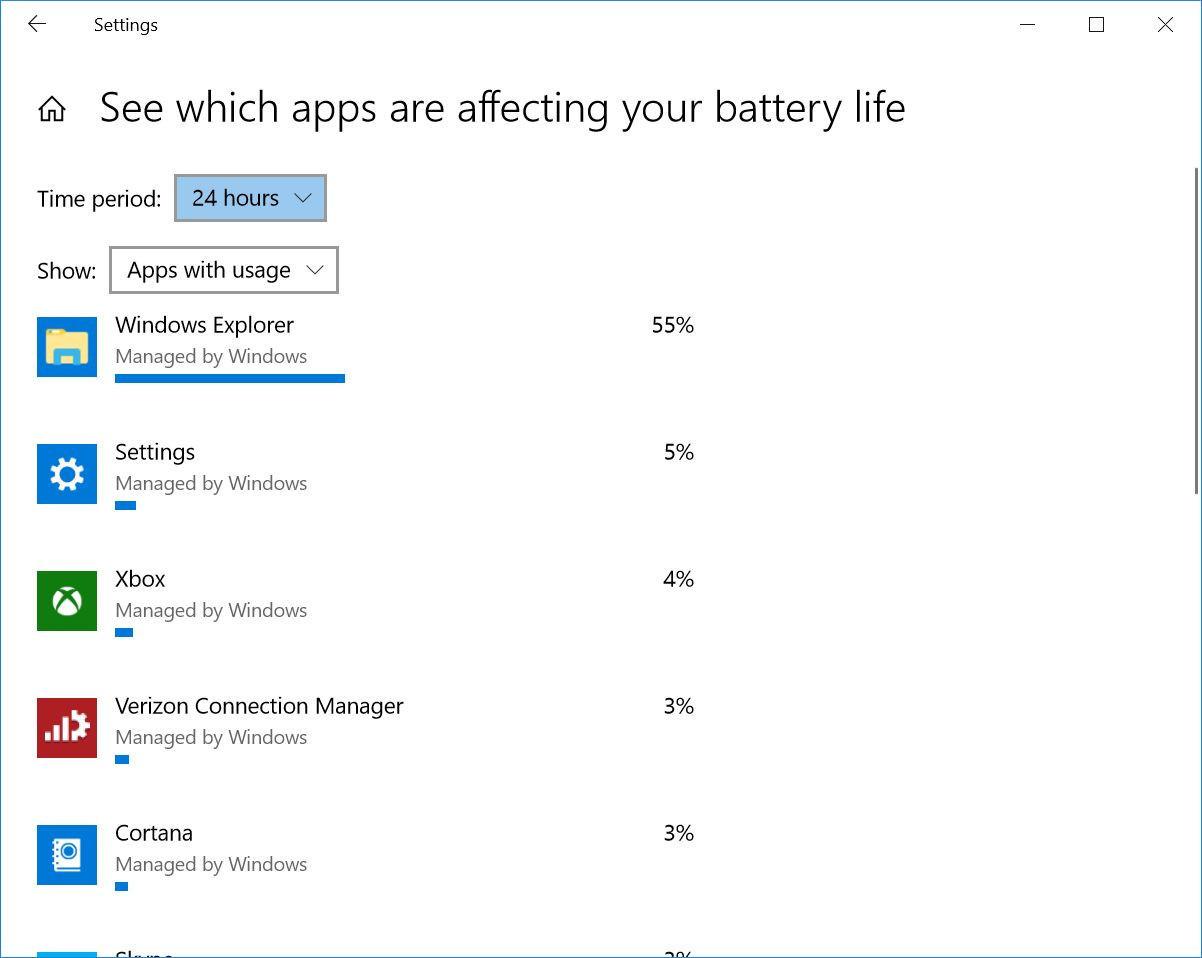
Multiple apps and processes running on your system will chew through battery life more quickly, and chances are you probably aren’t actively using everything that’s currently running on your PC. In Windows 10, the Settings App is the first step to find energy-hogging programs.

Type “see which apps are affecting your battery life” into the Windows search bar for a list of apps that are consuming the most power. If you see an app that you rarely use hogging a lot of power, make sure you close it. Often, these are apps you’ve opened in the background and forgot about, such as Spotify or Adobe Reader.

Next, type “See which processes start up automatically when you start Windows” into the search bar. This will open the Task Manager’s Startup tab, which lists every utility that runs as soon as you start your PC. Anything with a name like “Download Assistant” or “Helper” is usually safe to disable. For example, unless you frequently open Spotify playlists, tracks, or albums from links in a web browser, you can disable the Spotify Web Helper.

Take Heed of Airflow
Most laptops now come with lithium-polymer batteries that require much less maintenance than batteries of a decade ago, thanks as much to software and firmware improvements as innovation in the battery technology itself. You no longer have to perform a full battery discharge on a regular basis to calibrate it, nor do you have to worry that draining the battery completely will damage your laptop.

You do have to be careful about heat, however, which will hasten a battery’s demise. The biggest problems come from physical obstruction of the ventilation ports. Dust buildup is one problem, which you can take care of by cleaning the laptop’s vents and fan. (Periodically, use a can of compressed air to blow out some of the dust.) A more frequent issue that crops up, though, is using the laptop on a pillow or blanket, which can both obstruct the ventilation fan and retain the heat coming off of the system. Avoid this by using your laptop only on firm surfaces such as a table or a desk, which won’t flex and block airflow or cooling.

Keep an Eye on Your Battery’s Health
Keep an Eye on Your Battery's Health
In Windows 10, you’ll need to roll up your sleeves and delve into world of the command prompts. First, type cmd into the Windows Search Bar in the lower left of the screen to summon the Command Prompt in Windows 10. Right-click on its search item and choose to run Command Prompt at an administrator level. Then, type powercfg /batteryreport at the prompt. Your PC will generate an HTML file whose location is displayed in the command prompt window. Open it, and check near the top for your battery’s design capacity, full charge capacity, and cycle count.
Carry a Battery Backup
Keep an Eye on Your Battery's Health
Finally, the easiest way to ensure that you always have enough battery power is to bring along an external battery pack.

These external power sources plug in to your laptop the same way your charger does. They generally cost between $100 and $200, but come with adapters for use with many different laptop models. They can be used on more than one system, and even for other devices, such as your phone or tablet.

OWC ThunderBlade external SSD offers 16TB of super-fast storage

OWC ThunderBlade external SSD offers 16TB of super-fast storage

OWC ThunderBlade external SSD offers 16TB of super-fast storage
Creative professionals working with 4K or 8K video, or anyone who just wants an enormous amount of portable storage, can turn to the OWC ThunderBlade. Starting Thursday, this SSD now offers up to a whopping 16TB in capacity, and can transfer data at 2800MB/s.

OWC also updated its Envoy Pro EX line with 4TB version. And the Accelsior 4M2 internal SSD now also offers up to 16TB of capacity.

Creative professionals working with 4K or 8K video, or anyone who just wants an enormous amount of portable storage, can turn to the OWC ThunderBlade.  Starting Thursday, this SSD now offers up to a whopping 16TB in capacity, and can transfer data at 2800MB/s.  OWC also updated its Envoy Pro EX line with 4TB version. And the Accelsior 4M2 internal SSD now also offers up to 16TB of capacity.
At the heart of all these products is the new 4TB Aura P12 M.2 NVMe. This includes 3D NAND flash memory and security features including TCG Opal and TCG Pyrite.

The ThunderBlade includes dual Thunderbolt 3 ports, and can be connected with multiple drives with SoftRAID. With speeds up to 2800MB/s, OWC points about that a 1TB content transfer can be completed in under 4.5 minutes. It can hold almost an entire day — 22.7 hours — of 4K RAW footage, or almost a full month of GoPro 4K footage.

The 16TB version of the SSD costs $4,999. It’s available in smaller capacities too, down to a 1TB version for $729.

10 Tips for Working From Home

10 Tips for Working From Home

10 Tips for Working From Home

Everyone who works remotely has to figure out when to work, where to work, and how to create boundaries between work and personal life. What about office equipment, career development, training opportunities, and building relationships with colleagues? Working remotely, especially when working from home most of the time, means figuring out these issues and others. Here are 10 tips for leading a better and more productive remote-working life, based on my experience and what I’ve learned from others.

1. Maintain Regular Hours

Set a schedule, and stick to it…most of the time. Having clear guidelines for when to work and when to call it a day helps many remote workers maintain work-life balance. That said, one of the benefits of remote work is flexibility, and sometimes you need to extend your day or start early to accommodate someone else’s time zone. When you do, be sure to wrap up earlier than usual or sleep in a bit the next morning to make up for it.

2. Create a Morning Routine

Deciding you’ll sit down at your desk and start work at a certain time is one thing. Creating a routine that guides you into the chair is another. What in your morning routine indicates you’re about to start work? It might be making a cup of coffee. It might be returning home after a jog. It might be getting dressed (wearing pajama pants to work is a perk for some, but a bad strategy for others). A routine can be more powerful than a clock at helping you get started each day.

3. Set Ground Rules With the People in Your Space

Set ground rules with other people in your home or who share your space for when you work. If you have children who come home from school while you’re still working, they need clear rules about what they can and cannot do during that time. Additionally, just because you’re home and can let service people into the house or take care of pets doesn’t mean other family members should assume you will always do it. If that’s how you choose to divide up the domestic labor, that’s fine, but if you simply take it all on by default because you’re home, you may feel taken advantage of, and your productivity may suffer.

4. Schedule Breaks

Know your company’s policy on break times and take them. If you’re self-employed, give yourself adequate time during the day to walk away from the computer screen and phone. A lunch hour and two 15-minute breaks seems to be the standard for full-time US employees.

5. Take Breaks in Their Entirety

Don’t short-change yourself during breaks, especially your lunch hour. Or you can just launch a simple clock or timer on the screen when you take a break. If you return to your desk after only 40 minutes, walk away for another 20.

6. Leave Home

To the extent that it’s allowed and safe where you are during the COVID-19 outbreak, get out of the house, provided you can maintain social distancing of course. The same advice applies to people who work in traditional office settings, too. Leave the building at least once a day. Your body needs to move. Plus, the fresh air and natural light will do you good.

7. Don't Hesitate to Ask for What You Need

If you’re working from home unexpectedly due to coronavirus, ask for what you need within reason. You could be working from home for weeks on end and you should be comfortable, but ordering a new office chair and desk might be asking too much. Consider a mouse and keyboard, plus a back-supporting cushion instead.

8. Keep a Dedicated Office Space

In an ideal world, remote employees would have not only a dedicated office, but also two computers, one for work and one for personal use. It’s more secure for the employer, and it lets you do all your NSFW activities in private. But not everyone has a separate office in their home, and keeping two machines isn’t always realistic. Instead, dedicate a desk and some peripherals only for work use. For example, when your laptop is hooked up to the monitor and external keyboard, it’s work time. When it’s on your lap, that’s personal time. You may want to go as far as partitioning your hard drive and creating a separate user account for work.

9. Maintain a Separate Phone Number

Set up a phone number that you only use for calls with colleagues and clients. It doesn’t have to be a landline, second mobile phone, or even a SIM card. It can be a free VoIP service, such as Google Voice or a Skype number. Similar to some of the other tips, having a separate phone number helps you manage your work-life balance.

10. Socialize With Colleagues

Loneliness, disconnect, and isolation are common problems in remote work life, especially for extroverts. Companies with a remote work culture usually offer ways to socialize. For example, they might have chat channels where remote employees can talk about common interests, meetups for people in the same region, and (once the coronavirus ends) in-person retreats. It’s important to figure out how much interaction you need to feel connected and included. Even if you’re highly introverted and don’t like socializing, give a few interactive experiences a try so that you’re familiar with them if you ever decide you want them. If you’re not at a company with a strong remote culture, you may need to be more proactive about nurturing relationships.