PC Expert Services, Computer and laptop repair in Irvine, Orange County, CA
What to Do if Windows Can’t Connect to Your Printer

What to Do if Windows Can’t Connect to Your Printer

What to Do if Windows Can’t Connect to Your Printer
Most of the time, Windows automatically sees any printer on the same network as your PC. But what if your computer can’t see the printer, or simply refuses to connect? Adding a printer on a local network is simple in theory, but the reality is that, when the process goes wrong, it can be tricky to unravel.

Running the “Add a printer or scanner” wizard or the printer troubleshooter should fix the problem, in most cases. If this doesn’t work, though, these easy troubleshooting steps can rescue the day.

What to Do if Windows Can't Connect to Your Printer
Find a Connected Printer
A printer can connect to a network on either an Ethernet or Wi-Fi local area network (LAN), or you can connect it directly via USB to a computer on the network. Either connection type can be shared with other users on the network by enabling print sharing on the server or on the computer to which the USB printer is connected.

Windows’ “Add a printer or scanner” wizard is accessible from the “Printers & scanners” section in the Settings Control Panel. (In Windows 7, it’s the Add Printer wizard accessible from the Devices and Printers Control Panel.) The specific details vary between Windows versions, but the procedure is pretty much the same.

However, unlike earlier versions, Windows 10 doesn’t usually require you to run a wizard in the first place. Instead, when you plug your Ethernet cable into the printer or connect the printer to your wireless network, in most cases the printer will simply show up automatically in the list of installed devices.

Find a Connected Printer
(In Windows 7 and earlier versions, when you click the Add Printer link, Windows will automatically search for printers on the network. The printer name(s) will pop up, and you can select one. Add it, and with any luck, you will be ready to print.)

If your device is not listed here, click “Add a printer or scanner.” Windows starts searching your network for connected printers and lists its findings, as shown below. Simply click the printer you want to connect to, then click “Add device.”

Click “Add a printer or scanner,” and Windows starts searching your LAN for new printers.

Windows will move the printer to the list of installed printers and scanners. From here, when you click the printer name in the list, you can manage the machine as desired.

Troubleshooting a Missing Printer
Of course, a printer doesn’t always install as it should. It may not appear at all in the list of available printers, or you might get a message that Windows can’t connect to it. The first steps would be to make sure of the basics.

That means ensuring the printer is on and connected to the same network as the PC to which you want it added. You should also check that print sharing is enabled on the computer to which it’s attached. For a home network, that would be the computer on which you installed the printer’s software.

From here, you have two options. Either click the option “The printer that I want isn’t listed,” located directly below the list of printers discovered in the connected device search, or run the troubleshooter.

One thing to know: Just because you don’t see a printer doesn’t mean it isn’t there. Some IT departments hide the names of all printers by default. Although IT likely has good reasons for doing so, hidden printers can be an impediment when there is a legitimate need for someone to connect to a particular one. There are other issues that may prevent you from seeing an accessible printer, too.

Adding an Unseen Printer
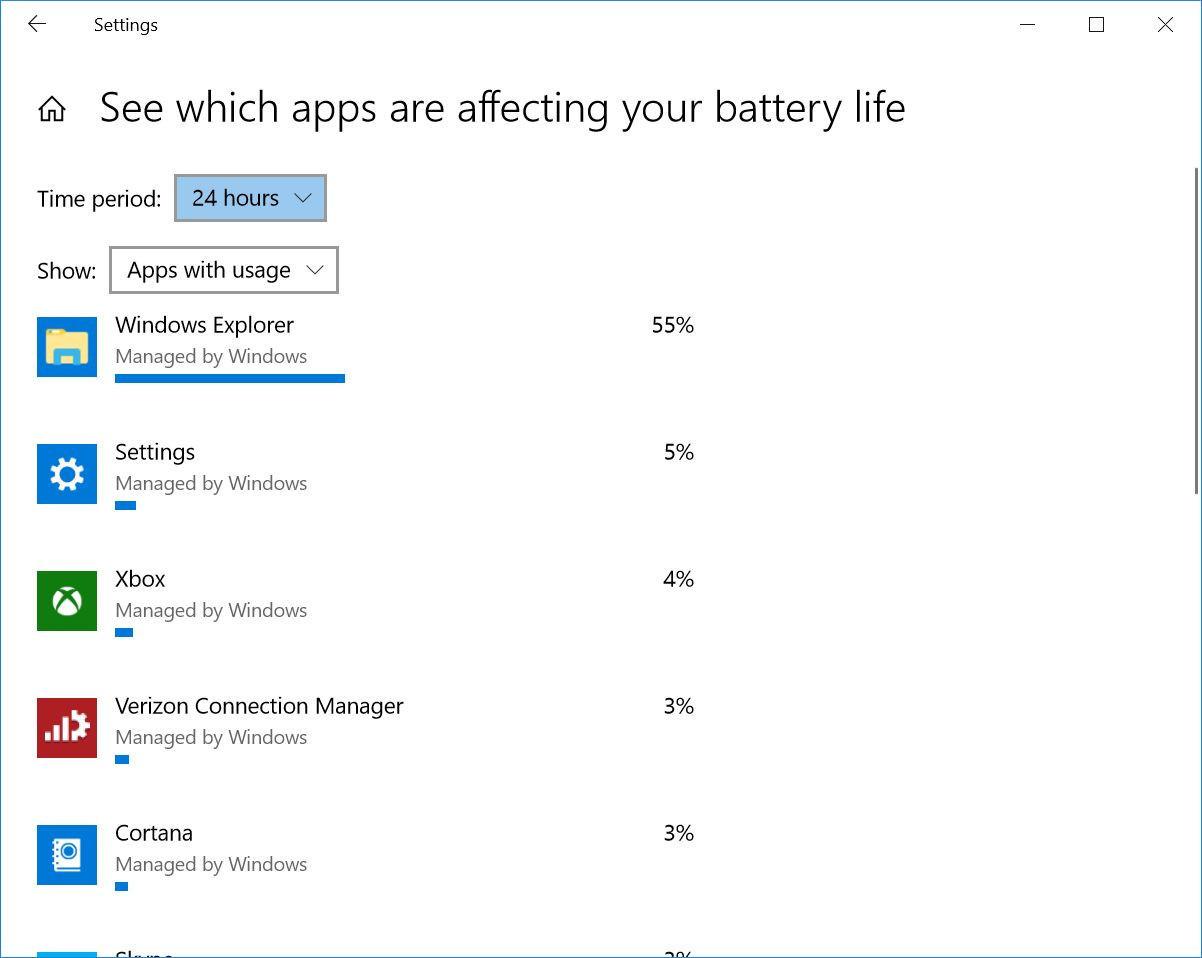
Close Specific Apps That Use Lots of Power
Choose the manufacturer and device type to install the correct printer driver.
In the “Find a printer by other options” dialog box, you’ll see five ways to find and connect to your printer. (Note that this dialog box has only three options in earlier versions of Windows.)

My printer is a little older. Help me find it: When you choose this option, Windows performs another search. If it finds your printer, it will display a second dialog box. Select your printer, and Windows will install the drivers. If your printer is not listed, try one of the other options in this dialog box (which will probably require another “Add a printer or scanner” search from the Printers & scanners Control Panel).

Select a printer by name: To use this option, you must know the name of the computer that the printer is connected to and the network name of the printer itself. If you’re doing this in an office for a network-attached printer, and you don’t know the printer name, you’ll have to ask another employee who uses it, or get it from your IT department. Notice the naming examples directly below this option in the image above.

Add a printer using a TCP/IP address or hostname: Choosing this option brings up the “Type a printer hostname or IP address” dialog box. Here, again, you’ll need to obtain the hostname or IP address. Enter the address or hostname, and click Next.

On a home network, you can get the printer’s IP address from its control panel by printing a status report or from the printer’s built-in onboard web portal.

Windows will query the printer, and then display a list of compatible devices, allowing you to select your printer by manufacturer and type. After making your selections, click Next, and it should connect your PC to the printer. If not, move on to the Running the Troubleshooter section below.
Add a Bluetooth, wireless or network discoverable printer: With this option, you can add peer-to-peer network devices that are not actually on your LAN. (Windows does a brute search for all available protocols available to your PC.).

Add a local printer or network with manual settings: Choosing this option runs a wizard that walks you through a series of steps for manually creating a printer port and installing the printer, which requires technical expertise beyond the scope of this entry-level guide.

At any point in the process, or if any one of these methods fails, you can run the Windows troubleshooter to try connecting to the printer.

How to Increase Your Laptop Battery Life

How to Increase Your Laptop Battery Life

How to Increase Your Laptop Battery Life
The inconvenient truth is that the battery in your PC or Mac laptop won’t last as long as the manufacturer advertises unless you pay attention to some key factors: your power settings, how many apps you’re running, even the temperature of the room in which you’re working. The good news is that none of this requires very much work to sort out, once you know which settings to adjust. Let’s take a look at the highest-yield ways to get the most out of your laptop’s battery.
How to Increase Your Laptop Battery Life
Use the Windows Battery Performance Slider

The first stop on our battery-life betterment tour is the Windows battery performance slider, a recent addition to Windows 10. It aims to group all of the settings that affect battery life into a few easy-to-understand categories. The company that made your PC determines exactly which settings the battery slider controls. But in general, keep these guidelines in mind:

The Best Performance mode is for people willing to trade off battery runtime to gain performance and responsiveness. In this mode, Windows won’t stop apps running in the background from consuming a lot of power.

The Better Performance setting limits resources for background apps, but it otherwise prioritizes power over efficiency.

Better Battery mode delivers longer battery life than the default settings on previous versions of Windows. (It’s actually labeled “Recommended” on many PCs.)

Battery Saver mode, a slider choice that will appear only when your PC is unplugged, reduces the display brightness by 30 percent, prevents Windows update downloads, stops the Mail app from syncing, and suspends most background apps.

Simplify Your Workflow: Closing Apps, and Using Airplane Mode

On the other hand, if you’re writing a novel or playing a local video file and don’t need to be distracted by notifications, it’s fine to enable Battery Saver. It’s a good habit to adjust your laptop use in more battery-conserving ways, such as by sticking to one app at a time and closing everything else when you’re not using it. It’s a bit like turning off the lights when a room is vacant. If you’re going back and forth between the kitchen and the pantry all the time, or between Firefox and Word, by all means keep both sets of lights and apps on and open. But if you’re just cooking or watching a YouTube video, you’ll be best served by turning off and closing everything else.

In addition to aiming to single-task, consider enabling Airplane mode in Windows, or turning off Wi-Fi and Bluetooth in macOS if you know you’ll be editing a document with no need for web access. In addition to eliminating distractions, Airplane mode eliminates a significant source of battery drain: not only the wireless radios themselves, but also the background apps and processes that constantly use them, such as updaters and push notifications.

Close Specific Apps That Use Lots of Power
Multiple apps and processes running on your system will chew through battery life more quickly, and chances are you probably aren’t actively using everything that’s currently running on your PC. In Windows 10, the Settings App is the first step to find energy-hogging programs.

Type “see which apps are affecting your battery life” into the Windows search bar for a list of apps that are consuming the most power. If you see an app that you rarely use hogging a lot of power, make sure you close it. Often, these are apps you’ve opened in the background and forgot about, such as Spotify or Adobe Reader.

Next, type “See which processes start up automatically when you start Windows” into the search bar. This will open the Task Manager’s Startup tab, which lists every utility that runs as soon as you start your PC. Anything with a name like “Download Assistant” or “Helper” is usually safe to disable. For example, unless you frequently open Spotify playlists, tracks, or albums from links in a web browser, you can disable the Spotify Web Helper.

Take Heed of Airflow
Most laptops now come with lithium-polymer batteries that require much less maintenance than batteries of a decade ago, thanks as much to software and firmware improvements as innovation in the battery technology itself. You no longer have to perform a full battery discharge on a regular basis to calibrate it, nor do you have to worry that draining the battery completely will damage your laptop.

You do have to be careful about heat, however, which will hasten a battery’s demise. The biggest problems come from physical obstruction of the ventilation ports. Dust buildup is one problem, which you can take care of by cleaning the laptop’s vents and fan. (Periodically, use a can of compressed air to blow out some of the dust.) A more frequent issue that crops up, though, is using the laptop on a pillow or blanket, which can both obstruct the ventilation fan and retain the heat coming off of the system. Avoid this by using your laptop only on firm surfaces such as a table or a desk, which won’t flex and block airflow or cooling.

Keep an Eye on Your Battery’s Health
Keep an Eye on Your Battery's Health
In Windows 10, you’ll need to roll up your sleeves and delve into world of the command prompts. First, type cmd into the Windows Search Bar in the lower left of the screen to summon the Command Prompt in Windows 10. Right-click on its search item and choose to run Command Prompt at an administrator level. Then, type powercfg /batteryreport at the prompt. Your PC will generate an HTML file whose location is displayed in the command prompt window. Open it, and check near the top for your battery’s design capacity, full charge capacity, and cycle count.
Carry a Battery Backup
Keep an Eye on Your Battery's Health
Finally, the easiest way to ensure that you always have enough battery power is to bring along an external battery pack.

These external power sources plug in to your laptop the same way your charger does. They generally cost between $100 and $200, but come with adapters for use with many different laptop models. They can be used on more than one system, and even for other devices, such as your phone or tablet.

Office 365 is now Microsoft 365

Office 365 is now Microsoft 365

Office 365 is now Microsoft 365
New name. More benefits. Same price.
On April 21, 2020, Office 365 will become Microsoft 365. Your subscription will include everything you enjoy today, like premium Microsoft Word, Excel, PowerPoint, and Outlook apps, and 1 TB of OneDrive cloud storage. Plus, you can use the Office apps across all your devices.

Call or Visit Us

(949) 478-1502

Monday – Friday 9 AM – 6:30 PM
Saturday 9 AM – 1 PM

7545 Irvine Center Drive, Ste. 200
Irvine, CA 92618

See what’s new in Microsoft 365

Seamlessly connect your financial accounts using Money in Excel1 to view, manage, and gain insights about your personal finances—all in one place.

Get intelligent writing assistance in your documents, emails, websites, and more with Microsoft Editor.

Access a growing catalog of premium templates, fonts, and photos to create high-quality personalized content.

Discover new and unique benefits from some of our partners.

Office 365 becomes Microsoft 365 automatically on April 21, 2020 and you don’t have to do a thing. Best of all, the price stays the same.

Why is my Laptop not powering on?

Why is my Laptop not powering on?

Why is my Laptop not powering on?

If your laptop is not powering on, or does not turn on, there are several issues that might causing your laptop not to power on.

1. Power Adapter

If your laptop runs out of battery and it is not plugged in, it may not power on until you plug in the Power Adapter. 

Ensure that the laptop Power Adapter is plugged in on both ends correctly and securely. If your laptop works only with Power Adapter plugged in, then your laptop battery is dead or defective.

2. Battery

The laptop can also be in a power state that prevents it from booting. Disconnecting the power cable and then removing the battery from the laptop. Leave both disconnected from the laptop for at least a minute. Then, put the battery back into the laptop, connect the power cable, and try turning on the laptop.

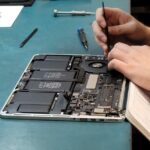
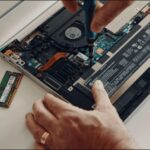
Removing the battery on some laptop models could be tricky, you might have to remove the bottom cover to access the battery connector. Some laptop battery connectors can break off easily during disconnection from the motherboard.  

3. Residual Charge

Sometimes, a residual electrical charge can keep your laptop from turning on. You can think of it as an “electricity clog.” By performing the following steps, you effectively drain your laptop of any electricity and start over, which can result in it powering up.

1. Disconnect the AC adapter and remove the battery.
2. Hold down the power button for thirty seconds to drain any residual power in the laptop.
3. Without replacing the battery, plug the AC adapter back into the laptop.
4. Press the power button to turn on your laptop.
5. If the laptop powers on, shut down the laptop normally.
6. When the laptop is powered down, put the battery back in the laptop.
7. Power on the computer, and verify that it boots correctly.

4. Bad Hardware

If, after going through the suggested troubleshooting steps above your laptop still does not turn on, the problem is likely a hardware failure. The most likely hardware component to be at fault is the motherboard or processor. Unfortunately, more in-depth troubleshooting is required to determine the cause for the laptop not working. If faulty hardware is the root cause, repair or replacement of that hardware component may be necessary to fix the problem.

We recommend to contact PC Expert Services to have your laptop diagnosed and have them to replace the faulty hardware professionally.

Windows 10 login screen flashing

Windows 10 login screen flashing

Windows 10 Login Screen Flashing


     In most cases, after Windows 10 update, some users have reported that they are experiencing a problem with a flashing screen on their laptop screen. Fortunately, we are here to solve your problem, just drop off your laptop at PC Expert Services for a FREE Estimate and your screen won’t flash ever again.

PC Expert Services is a professional Laptop Repair specialist with tools and know-how on how to fix your laptop flashing issue correctly without any data loss as quickly as possible at a very affordable rate. 

We recommend to NOT to follow the online suggestions on how to fix it hence most of these instruction are designed to cause more issues without fixing your laptop flashing and force you to buy a driver or software which will at the end not remedy your laptop problem and also might cause data loss and make the problem harder to fix later by a professional.

There are many different symptoms of the Windows 10 screen flashing and not all remedies are the same. Each symptom might need its own unique remedy and the issue need to be diagnosed correctly before applying the fix so that the screen flashing won’t return for good.

You might see the addition following Windows 10 flashing on your laptop:

  • Windows 10 screen flashing on and off – Your screen may not flash constantly, but only in certain time intervals. 
  • Windows 10 flickering start menu – There’s a chance your screen will flash only when you open the Start Menu.
  • Windows 10 taskbar flickering – Once again, there’s a chance only one part of the screen will flash, in this case, the taskbar.
  • Windows 10 flashing screen on boot – Screen flashes on boot are also common in Windows 10.
  • Windows 10 logon screen will not load and keeps flashing – The screen flashing is constant at log on screen.
  • Windows 10 flashing screen Dell – The screen flashing problem is also common on Dell devices.
  • Windows 10 flickering screen Lenovo – The screen flickering issue is more common on Lenovo devices.
  • Screen flashing Windows 7 – Although more users experienced this problem in Windows 10, it’s also common in Windows 7.
What should I do when a computer freezes or locks up?

What should I do when a computer freezes or locks up?

What should I do when a computer freezes or locks up?

This blog post contains recommendations on what to do if the computer freezes or deadlocks. If your computer has stopped responding, follow the steps below to attempt to get the computer to unfreeze.

Give the computer some time

Wait. Give the computer a few minutes to process. Sometimes a computer may appear to be frozen, but it’s only slow or busy processing a complex task.

Is the computer deadlocked?

See if the computer responds by pressing the Caps Lock key on the keyboard and watching the Caps Lock LED (light) to see if it turns on and off. If the computer can turn on and off Caps Lock, continue to the next step. If nothing happens, the computer is deadlocked, and you must reboot the computer.

End Task the not responding program

See if the computer responds by pressing the Caps Lock key on the keyboard and watching the Caps Lock LED (light) to see if it turns on and off. If the computer can turn on and off Caps Lock, continue to the next step. If nothing happens, the computer is deadlocked, and you must reboot the computer.

If the Task Manager opens, but the mouse is still not working, it may be a problem with mouse’s hardware.

Reboot a frozen computer

If none of the above steps helped, you must reboot the computer. To reboot a frozen computer, press and hold down the power button until the computer turns off. Once the computer is off, wait a few seconds, then turn the computer back on and let it start as normal.

What happens to any work that has not been saved?

Any work that has not been saved is lost when a computer has to be reboot because it is frozen. In some situations, some programs may auto save your work every few minutes. If the program you are using performs this action, you can recover the work up to the last auto saved state.

Resolve hardware or device driver issue

If you tried all steps above and the computer still freezes, there may be defective hardware or a device driver that is not working correctly. A defective hard drive, stick of RAM, video card, or another piece of hardware can cause a computer to freeze. A device driver can also cause a computer to freeze if it is out of date, conflicting with another driver, or not working properly.

If you determine that a defective piece of hardware is causing the freezes, you should replace the hardware right away to prevent further damage to the computer. If a device driver is at fault, download the latest driver from the manufacturer’s website and install it before the computer freezes. Or use another computer to download the driver and try installing the driver on your computer.

If you cannot install the latest driver before the computer freezes, another option is to start the computer in Safe Mode. Once in Safe Mode, you can access Device Manager and uninstall the hardware device corresponding to the device driver that is not working correctly. Then, restart the computer and load into Windows normally. Windows should detect the hardware that you uninstalled and try to reinstall the device driver. This process may be enough to fix the issue, and stop further freezes from occurring. You can also try installing the latest driver at this point, to make sure your computer is up-to-date for that device driver.

You can also try accessing the computer BIOS and disable any hardware that is not working properly, to see if that stops the freezes from occurring. However, you should still replace that hardware, as you may not be able to use your computer fully if the hardware remains disabled.

Take PC to repair shop

If the options above do not work, we recommend taking your computer to PC Expert Services in Irvine and allow us professionally to diagnose and fix the problem.