Should You Shut Down Your Laptop or Just Close the Lid?
Should You Shut Down Your Laptop or Just Close the Lid?
If you’ve ever wondered whether it’s better to shut down your laptop or simply close the lid, you’re not alone. This is one of the most common questions among laptop users—and the answer depends on how you use your device.
In this guide, we’ll break down the differences between sleep mode vs shutdown, and help you decide which option is best for performance, battery life, and long-term reliability.
What Happens When You Close the Lid?
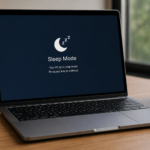
When you close your laptop lid, most systems enter sleep mode. In this state:
- Your open apps and files are stored in RAM
- The system uses very little power
- You can resume your session instantly
Benefits of Sleep Mode
- Fast and convenient access to your work
- No need to reopen programs or files
- Ideal for short breaks or daily use
Drawbacks of Sleep Mode
- Still consumes a small amount of battery
- Background processes may continue running
- Can lead to slower performance over time if not restarted
What Happens When You Shut Down Your Laptop?
Shutting down your laptop completely powers off the system:
- All processes are stopped
- RAM is cleared
- No battery is used while powered off
Benefits of Shutting Down
- Improves system performance over time
- Helps fix software glitches and freezing issues
- Essential for system updates and maintenance
- Conserves battery completely
Drawbacks of Shutting Down
- Slower startup time
- Requires reopening apps and files
Sleep vs Shutdown: Which Is Better?
Use Sleep Mode if:
- You plan to use your laptop again soon
- You need quick access without waiting
- You’re working throughout the day
Shut Down Your Laptop if:
- You won’t use it for an extended period
- Your laptop is running slow or overheating
- You’re troubleshooting or installing updates
- You want to extend battery lifespan
How Often Should You Shut Down Your Laptop?
For optimal performance, it’s recommended to:
- Use sleep mode for daily convenience
- Perform a full shutdown or restart at least once per week
This helps clear memory, refresh system processes, and maintain overall performance.
Expert Tip: Improve Laptop Performance
If your laptop is experiencing:
- Slow performance
- Overheating
- Battery drain issues
- Problems waking from sleep
It may require professional diagnostics.
PC Expert Services provides:
- Laptop diagnostics and performance optimization
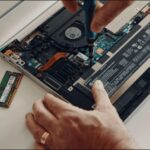
- Hardware repairs (battery, screen, motherboard)
- Data recovery and system troubleshooting
Final Thoughts
Choosing between shutting down your laptop or closing the lid comes down to your usage habits. For everyday convenience, sleep mode works well—but regular shutdowns are essential for keeping your system running efficiently.
If your laptop isn’t performing as it should, PC Expert Services support can help extend its lifespan and restore performance.